Cloud Backup has always been important, but AI is changing the day-to-day reality for IT teams. Tools that can write, summarize, reorganize, and automate work also introduce a new kind of risk: a lot can change fast, sometimes in the wrong direction. There have been public reports describing an AI coding agent deleting production data and the backups attached to it in seconds, which is a strong reminder that automation is powerful, but not perfect.
Still, most data loss is not dramatic. It’s the usual stuff: someone deletes the wrong folder, a file gets overwritten, ransomware hits shared storage, or a remote laptop never reconnects. The practical question is always the same: can you restore what you need, to a healthy point in time, without guessing? NIST guidance treats backup as something you conduct, maintain, and test specifically to reduce the impact of ransomware, hardware failure, and accidental or intentional destruction.
Why AI makes the “sync is backup” myth more expensive
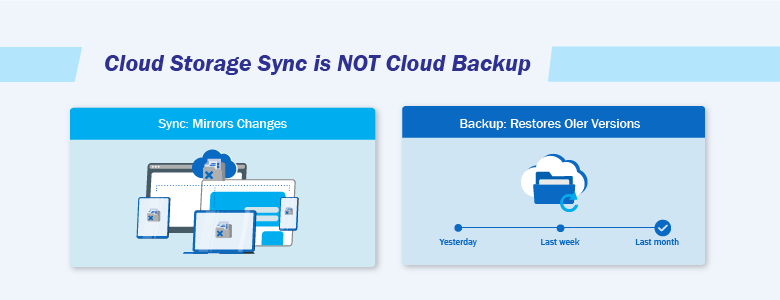
Cloud storage and sync tools are great for collaboration. They keep everyone on the same page and on the latest version. The problem is that they tend to do that even when the “latest version” is the wrong one.
If a file is overwritten, corrupted, or deleted, sync can spread that change quickly. Some cloud backup guidance highlights this exact issue: syncing and storage are not the same as having a separate recoverable copy, especially when deletions or ransomware-style changes replicate across devices.
AI increases the odds of this happening because it increases the volume and speed of edits. Teams generate more drafts, more revisions, more “cleanups,” and more automated handling of content. Sometimes the mistake is obvious, sometimes it only becomes obvious days later when someone needs the original.
Cloud Backup vs cloud storage: what actually changes
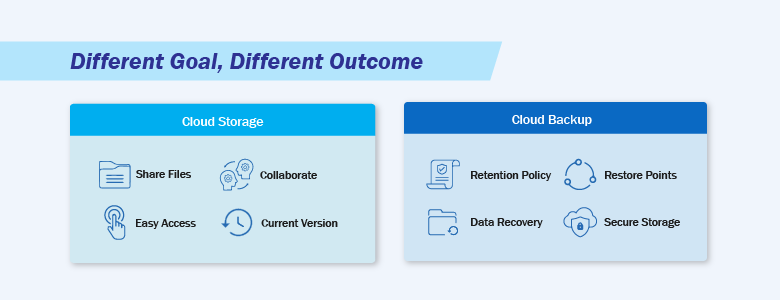
A good way to separate the two is by the goal:
- Cloud storage and sync focus on access and collaboration.
- Cloud Backup focuses on recovery, meaning you can restore data to a previous healthy state.
Microsoft’s security benchmark for backup and recovery talks about this in operational terms: backup and recovery is about resilience against incidents like ransomware, accidental deletions, and outages, backed by automation, protection of backup data, monitoring, and regular testing.
Cloud platforms can also offer native protection features that help with recovery, like soft delete, versioning, and retention locks. Google Cloud’s documentation, for example, describes options like object versioning and soft delete to help recover from accidental or malicious deletion, alongside retention controls. Those features can be useful, but they still need to line up with your retention and restore needs.
Cloud Backup: 6 ways to recover from AI mistakes and accidental deletion
1) Keep point-in-time copies, not just the latest version
When something goes wrong, “latest” is often the problem. A point-in-time restore is what lets you roll back to a known-good moment, whether the issue came from a person, malware, or an automated tool.
This is also why relying on sync alone is risky. Sync is designed to mirror the current state. Backup is designed to preserve older states so you can restore them. Several cloud backup resources emphasize that storage and sync do not protect you the same way a true backup copy does, especially when unwanted changes replicate quickly.
2) Set retention based on how long it takes to notice problems
A surprisingly common failure mode is “we had a way to recover, but we noticed too late.”
AI makes this more common because mistakes can look reasonable at first. A rewritten doc might read fine until finance checks the numbers. A “cleanup” might seem harmless until someone needs a removed file for audit.
NIST’s ransomware and data-loss guidance is explicit about maintaining backups so they remain useful and available when needed, not just taking them once and hoping for the best. Retention should reflect your real discovery window, not just a default setting.
3) Protect backup copies so ransomware and accidental deletion don’t wipe your recovery path
Modern ransomware often tries to disrupt recovery by targeting backups. That’s why security guidance frequently points to stronger protection for backup copies, including approaches like immutability and offline protection.
From an IT operations perspective, it also helps when your backup stack can do more than “copy files on a schedule.” Some platforms support continuous data protection, where an agent watches for changes and backs up in near real time to reduce data loss between scheduled jobs. Others add practical protections like archive encryption and built-in anti-malware/antivirus capabilities so backups are less likely to become another weak point during an incident.
This applies beyond ransomware too. If an automation mistake deletes or overwrites data quickly, you want your recovery copy to be unaffected by that same action. Public discussions of AI-driven deletion incidents highlight scenarios where backups tied too closely to the primary environment can be lost alongside the primary data.
4) Use RPO and RTO to set expectations and design the backup properly
These two numbers keep backup planning grounded:
- RPO (Recovery Point Objective): how much data loss (in time) is acceptable.
- RTO (Recovery Time Objective): how quickly you need data or services back.
NIST controls reference aligning recovery capabilities to RPO and RTO as part of contingency planning, and Microsoft’s benchmark emphasizes recovery readiness through planning and testing.
AI can shift these targets because it increases how often data changes. If content creation and edits spike, your acceptable loss window might shrink. A backup policy that felt “fine” last year can quietly become too slow or too infrequent once AI becomes part of daily work.
5) Practice restores so recovery isn’t guesswork during an incident
Backups feel reassuring. Restores are what prove you can recover.
NIST SP 800-53’s CP-9 control includes not only taking backups but also testing backup information for reliability and integrity, including restoration testing using sampling. Your own internal “Backup and Restore” article also stresses that regular testing is crucial to ensure recovery works quickly when it matters.
This doesn’t have to become a heavy process. Even a lightweight routine helps:
- Restore a small set of files monthly,
- Occasionally test a larger restore that reflects real business impact,
- Verify that restored data is actually usable (structure, permissions, and access).
6) Prioritize what matters most, and make restores flexible across environments
Most teams cannot protect everything at the highest level, so prioritization matters. Start with the data that stops work when it’s missing: shared project folders, core file shares, collaboration spaces, and systems that feed business operations. Microsoft’s backup and recovery benchmark frames this around resilience for critical resources and the ability to recover within business objectives.
It also helps when your backup tooling supports a wide range of workloads from one place, since AI-driven work does not live in just one system. Many environments need coverage across Windows, Linux, Mac endpoints, virtualization stacks (like VMware and Hyper-V), and SaaS data such as Microsoft 365 and Google Workspace. Restore flexibility matters too. Being able to recover a full system, a VM, or a single file can be the difference between a quick fix and a long outage.
For larger environments, some platforms also support cloud-local-virtual recovery and migration paths, which can be useful when you need to bring workloads back online quickly in a different location or format.
Where hybrid backup fits naturally for IT storage and datacenter teams
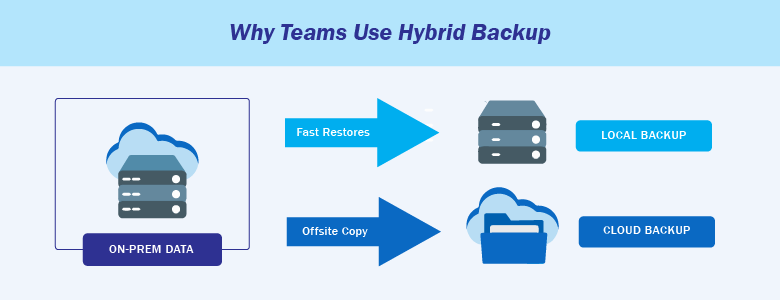
In practice, many IT storage and datacenter teams use a hybrid approach because it balances recovery speed and resilience.
A typical pattern is:
- Keep a local copy for fast restores (especially for large datasets or low-latency restores),
- And keep a cloud copy for offsite protection and disaster recovery.
This lines up with widely referenced practices like keeping multiple copies and ensuring at least one copy is offsite, while still being able to restore quickly when the issue is local.
It also helps when your backup platform supports hybrid storage options, such as hosted cloud storage, public cloud targets (for example Microsoft Azure), or local storage managed by the organization. That flexibility makes it easier to meet different RTO needs across workloads without turning backup into a patchwork of tools.
Choosing a backup platform for your business

Once teams get serious about Cloud Backup, they usually realize they’re not just buying storage. They’re looking for a setup that can cover mixed workloads (endpoints, servers, VMs, and SaaS), recover at different levels (full systems down to individual files), and reduce the odds that backups become the next weak point during an incident. Features like continuous data protection, archive encryption, and built-in anti-malware are often part of that “safer by default” approach.
One platform worth looking at is Acronis Cyber Protect Cloud, which includes these capabilities as part of its standard offering. That means continuous data protection (CDP) for near real-time backup, integrated anti-malware and antivirus, archive encryption, support for workloads like Microsoft 365, Google Workspace, VMware, Hyper-V, Windows, Linux, and Mac, flexible recovery options down to granular files, and hybrid storage choices across hosted cloud, public cloud (such as Microsoft Azure), or local storage.
Interested in learning more about Cloud backup and Acronis? Contact us at marketing@ctlink.com.ph to set a consultation with us today!